Measure report
This menu is only available for logged in user, who has role taMeasureLogManager.
With this option, you can query all actual measures not declarable, based on any combination of any attributes of a measure, including dates, commodity codes, country, measure types, additional codes, certificates and footnotes.
Click Reports on the menu bar and then click on Measure report in the sub-menu. The following page will appear:
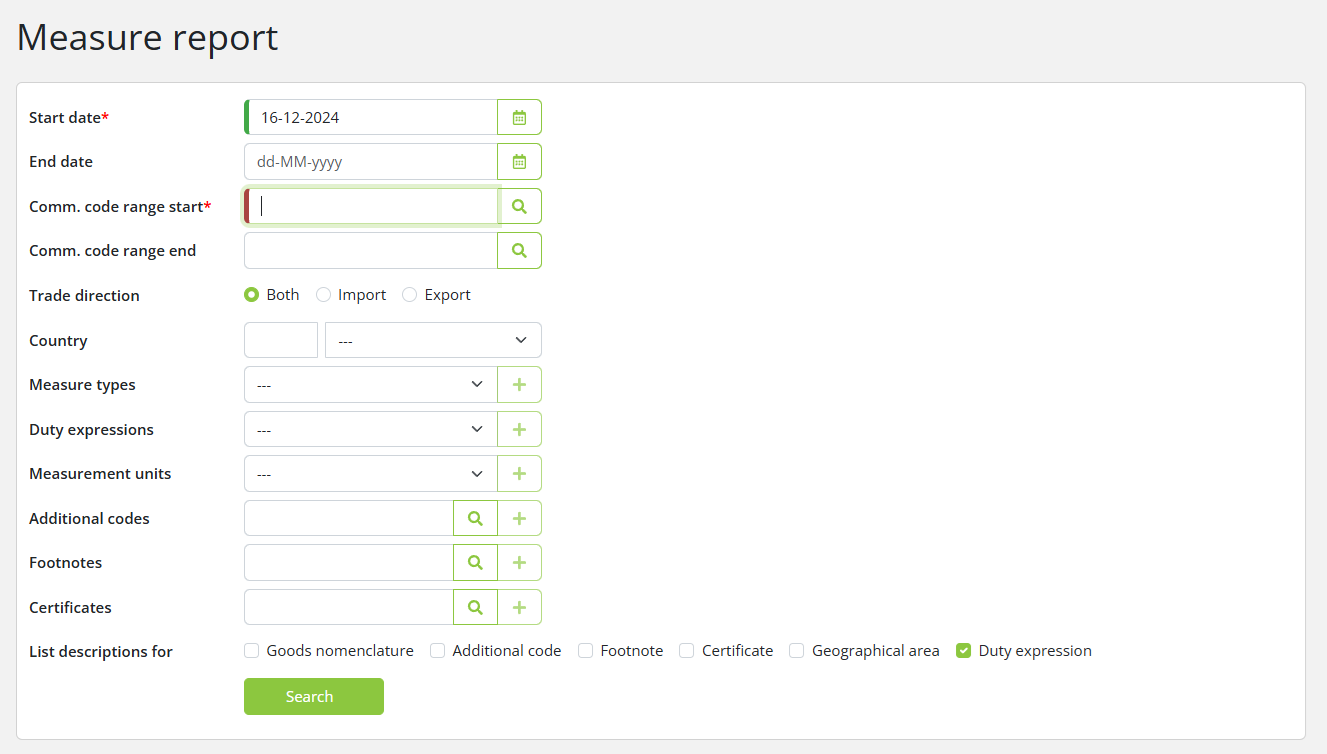
Searching measure report
To generate the report, enter the relevant data into the fields according to the following table:
|
Field |
Description |
|
Start date |
Enter start date you want to search on. This field is mandatory.
|
|
End date |
Enter end date you want to search on. This field is optional. If the end data is supplied, measures are returned that are valid between the start and end dates (inclusive). If the end date is not supplied, measures are returned that are valid on the start date.
|
|
Comm. code range start |
Enter the commodity code range start you wish to search. It is possible to search for one chapter or part of a chapter. 2,4,6,8 or 10 digits can be provided. This field is mandatory.
|
|
Comm. code range end |
Enter the commodity code range end you wish to search. It is possible: 2,4,6,8 or 10 digits. This field is not mandatory. If end commodity is provided, measures are returned that have commodities between the two commodities (inclusive). If end commodity is not provided, measures are returned for the start commodity and all of its children.
|
|
Trade direction |
Enter trade direction you wish to search. By default, Import is selected.
|
|
Country |
Filter results by a country. Choose the country of your choice by description or ID.
|
|
Measure types |
Enter measure type you wish to search from the dropdown list. This field is mandatory.
|
|
Duty expressions |
Enter duty expression you wish to search from dropdown list. This field can be left unfilled. To enter more than one duty expression, select a duty expression and click
|
|
Measurement units |
Enter measurement unit you wish to search from dropdown list. This field can be left unfilled. To enter more than one measurement unit, select a measure unit and click
|
|
Additional codes |
Enter additional codes you wish to search. This field can be left unfilled. To enter more than one additional code, type a code into the additional code field and click The additional code could be entered by using lookup function.
|
|
Footnote |
Enter footnotes you wish to search. This field can be left unfilled. To enter more than one footnote, type a footnote into the footnote field and click The footnote could be entered by using lookup function.
|
|
Certificate |
Enter certificate you wish to search. This field can be left unfilled. The certificate could be entered by using lookup function. To enter more than one certificate, type a certificate code into the text field and click
|
|
Description |
The user can indicate which lists of descriptions should be displayed under the list of measures in the query results. Options are: Goods Nomenclature, Additional Codes, Certificates, Footnotes, Geographical areas, Duty expressions (duty expressions are shown in the measures list). This field is optional.
|
_files/image023.jpg) .To remove a duty expression you have entered, click
.To remove a duty expression you have entered, click _files/image030.png) .
.
Note that: you must provide at least one of measure type, additional code, certificate or footnote to limit the number of return records, if not It's huge.
Click on the Search button to start the search.
The following results page will appear:
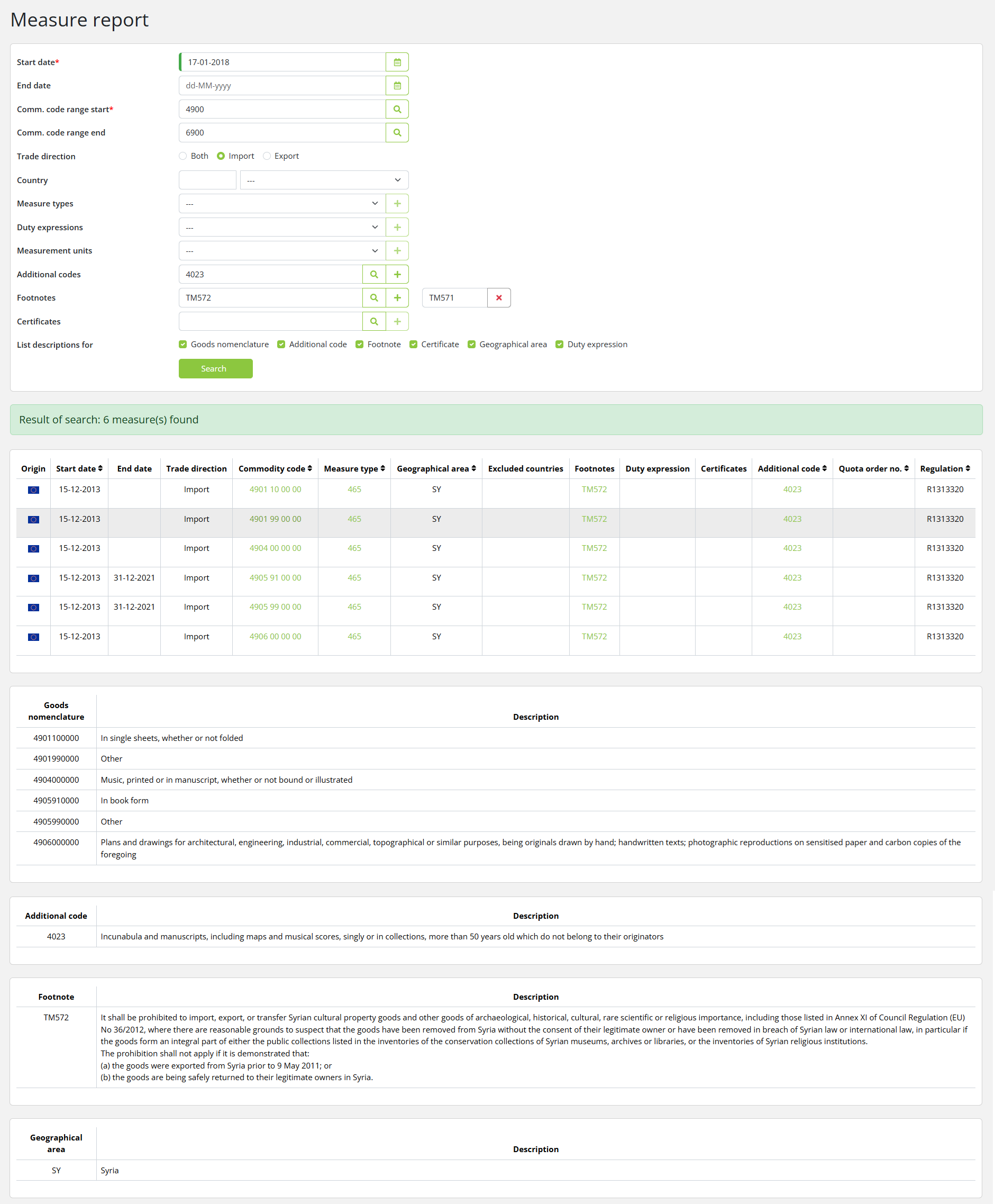
Click Export on the menu (top right) to generate the list in the form of an Excel file, which you can download or print.
Click Print on the menu (top right) to generate the list in the form of a PDF file, which you can download or print.