Measures for nomenclature
With this option, you can search for measures that are applicable on a certain declarable code. The search can be filtered on additional specified criteria (e.g. additional codes).
Click Measures on the menu bar and then click on For nomenclature in the sub-menu. The following page will appear:
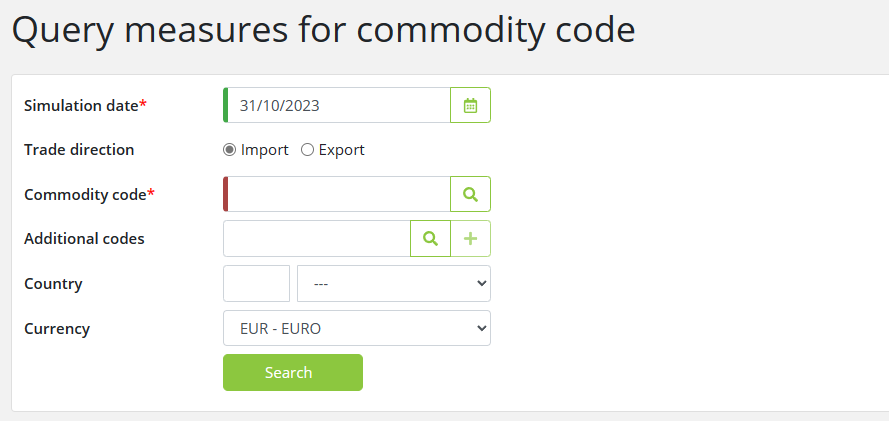
To find the measures applied to commodity codes, enter the relevant data into the fields according to the following table:
|
Field |
Description |
|
Simulation date |
Entering a Simulation date is required when searching for measures, narrowing the search to only the measures that are valid at the specified date. By default, the field is set to the current date.
The simulation date entered can be earlier or later than the system's current date. If the simulation date is later than the current date, a warning about the possible future changes to measures will be displayed.
|
|
Trade direction |
Select the trade direction i.e. Import or Export. By default, it is set to Import.
|
|
Commodity code |
If you choose to look at the import trade direction, the commodity code you enter must be 10 digits. If you look at the export trade direction, the commodity code you enter must be 8 digits. To lookup a commodity code, click on the
|
|
Additional codes |
Enter additional codes if applicable. This field can be left unfilled. To enter more than one additional code, type a code into the additional code field and click
|
|
Country |
Filter results by a country. Choose the country of your choice by description or ID.
|
|
Currency |
Choose the currency of your choice for the display of the results.
|

_files/image023.jpg) To remove an additional code you have entered, click
To remove an additional code you have entered, click _files/image030.png) .
.
Click on the Search button to start the search. The following results page will appear:
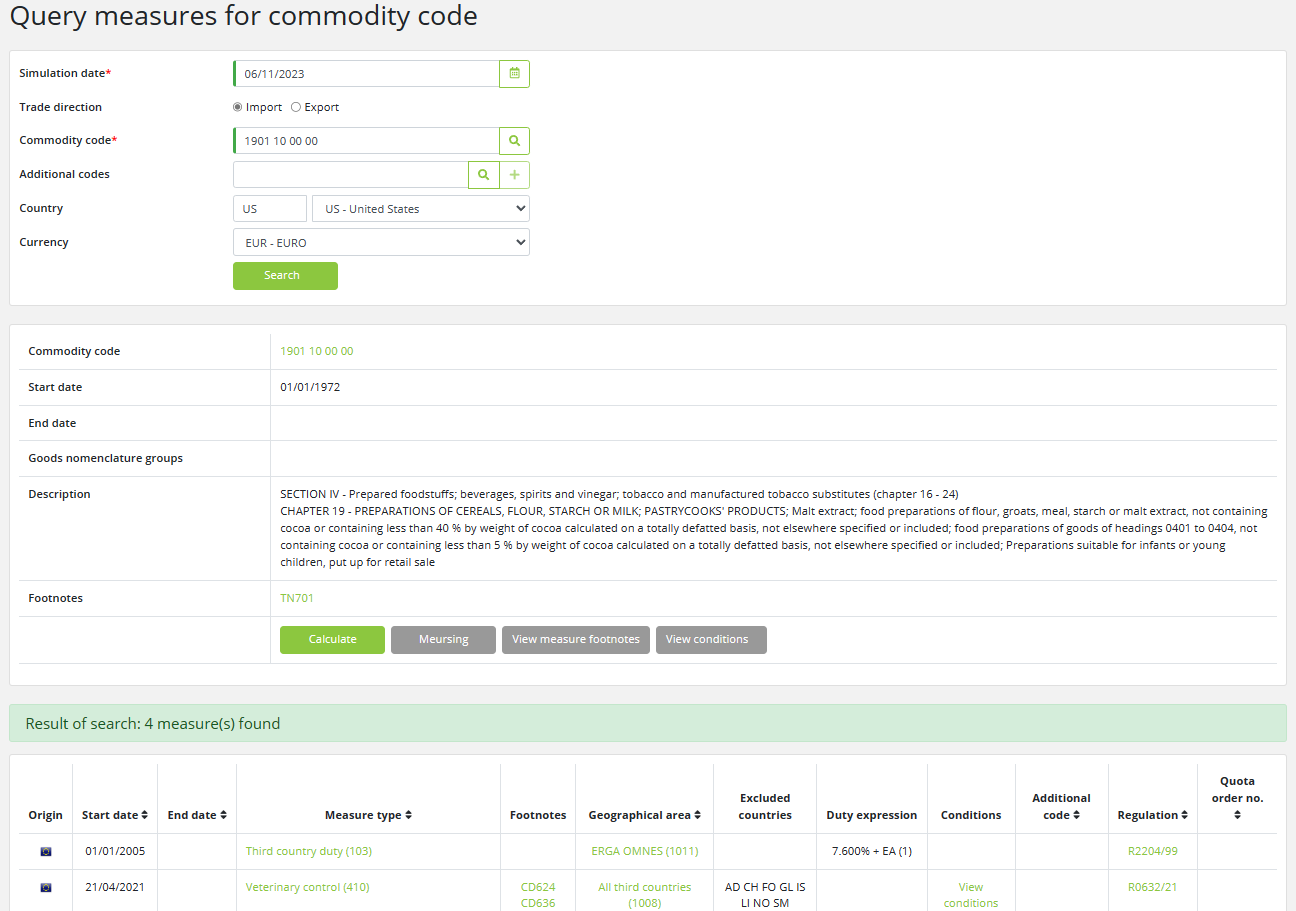
In the middle segment of the page, you will be able to view information about the commodity code. The following command buttons provide additional information:
|
Button |
Description |
|
Calculate |
This button enables you to calculate taxes based on specific criteria.
|
|
Meursing |
This button links to the Meursing calculation, where you can select a Meursing additional code.
This button is shown only when Meursing calculation is applicable for the commodity code.
|
|
View additional codes |
This button opens a popup window that displays a list of additional codes for all of the displayed measures.
This button is shown only when a country has been selected in the search criteria.
|
|
View measure footnotes |
This button opens a popup window that displays a list of footnotes for all of the displayed measures.
This button is shown only when a country has been selected in the search criteria.
|
|
View conditions |
This button opens a popup window that displays a list of conditions for all of the displayed measures.
This button is shown only when a country has been selected in the search criteria.
|
The measures applied to the commodity code are displayed in the lower segment of the page. The following information about each measure type is displayed and by clicking on the links, you can view additional information about each of the fields:
|
Field |
Description |
|
Origin |
Shows whether the measure is a national or a TARIC measure in the form of a corresponding flag.
|
|
Start date |
The Start date when the measure becomes valid.
|
|
End date |
The end date of the measure when it ceases to be valid.
|
|
Measure type |
Click on the Measure type to view more information about the Measure in a popup window.
|
|
Footnotes |
Shows the footnote type and ID associated with the measure, with an option to view the footnote.
|
|
Geographical area |
Shows the country or region of the measure.
|
|
Excluded countries |
Shows the countries from the country group that the measure does not cover.
|
|
Duty expression |
Shows the duty rate for duty measures.
|
|
Conditions |
Indicates if there are conditions associated with the measure.
Click on View conditions for detailed condition information, displayed in a popup window.
|
|
Additional code |
Shows the additional code (type and code) associated with the measure, with an option to view the additional code.
Click on the additional code for more information about the code, displayed in a popup window.
|
|
Regulation |
Shows the role and ID of the regulation associated with the measure.
|
|
Quota order no. |
The Quota order number that is related to the measure.
Click on the Quota order number for detailed quota information, displayed in a popup window.
|