Calc of duties
Calculate
With this option, you can calculate the duties that you have to pay for imported goods and validate that you comply with import or export restrictions and prohibitions.
Click Calc of duties on the menu bar and then click on Calculate in the sub-menu.
The following page will appear:
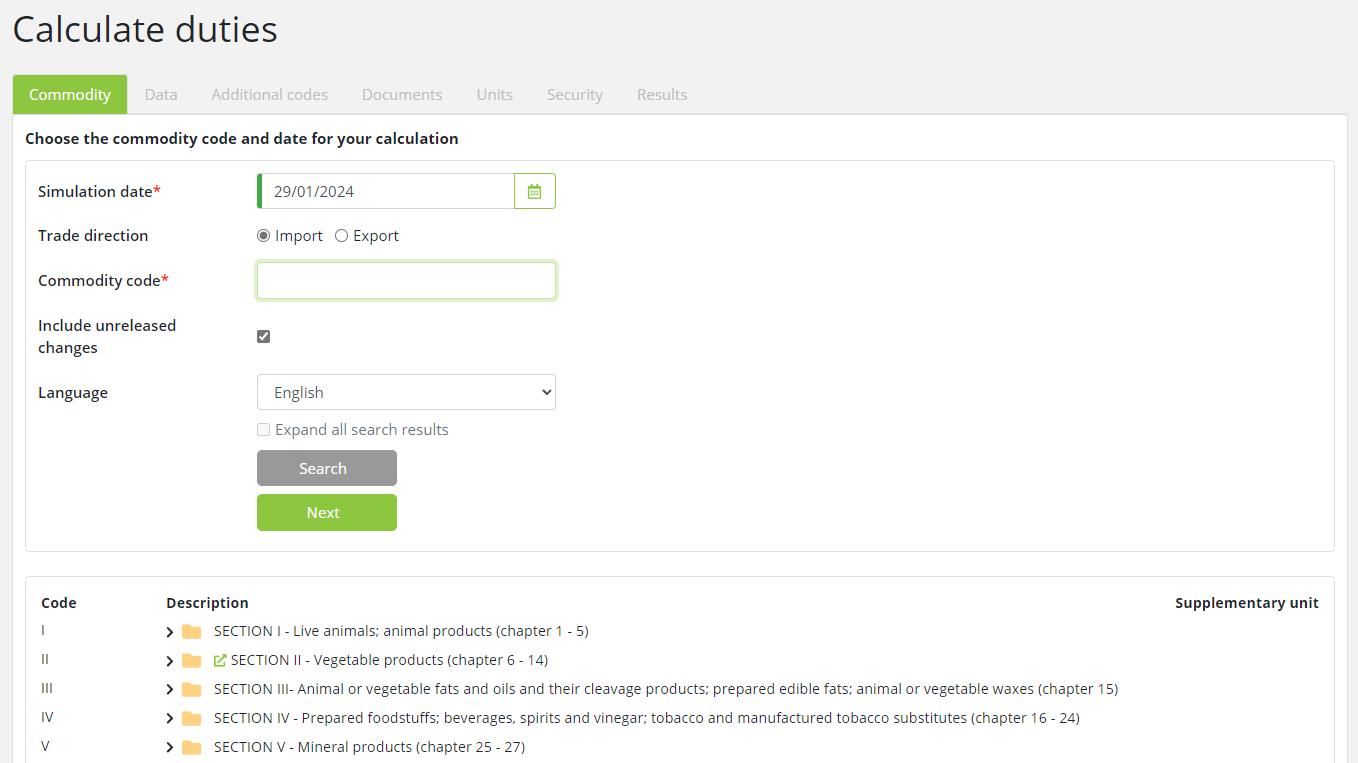
You will be taken through a series of steps and asked for the relevant details needed for the calculation, clicking Next after each step. At any time in the process, you can return to a previous step by clicking the step heading (Commodity, Data etc.).
Note that you can also get to the Calculate process from Measures for nomenclature, by clicking the Calculate button. When you enter Calculate in this way, you bypass step 1 (Commodity) and go straight to step 2 (Data). Values such as date, commodity code, trade direction, country and additional codes that you have selected in Measures for Commodity will be automatically filled in in the Calculate screens.
Step 1: Commodity
The first step is to select a commodity code
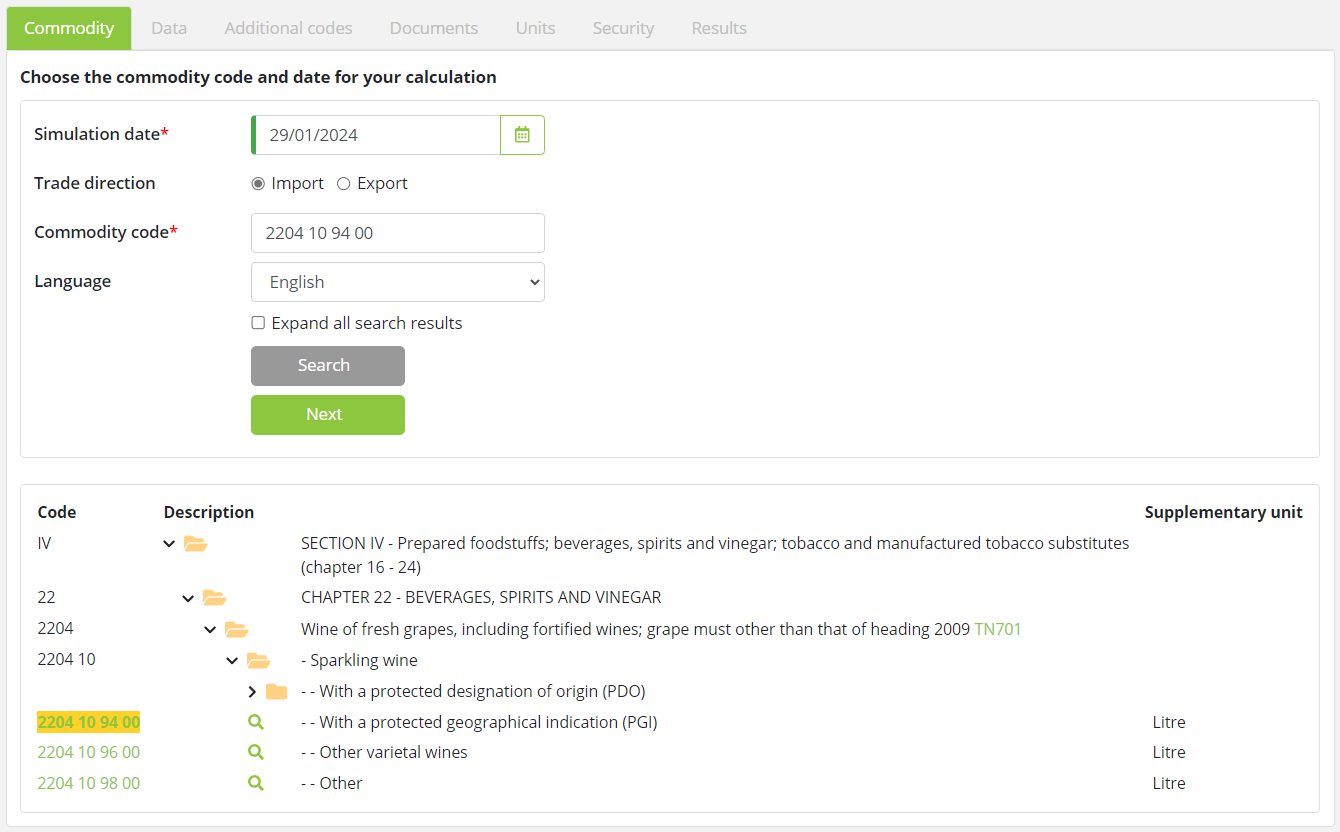
Enter the following information:
|
Field |
Description |
|
Simulation date |
Duties, prohibitions and restrictions can vary over time, therefore a calculation date is required. By default, the current date is used.
The simulation date entered can be earlier or later than the system's current date. If the simulation date is later than the current date, a warning about the possible changes to the measure will be displayed. |
|
Trade direction |
Select the trade direction i.e. Import or Export. By default, it is set to Import.
|
|
Commodity code |
Enter the commodity code you wish to use or search for the code using the nomenclature tree displayed in the lower segment of the page.
|
|
Language |
By default, the language displayed is set to the language of your user interface. You can change it to any of the preset languages available in this field.
|
|
Expand all search results |
When this checkbox is selected, the search results are shown in a fully expanded goods nomenclature tree.
|
After entering this information, click Next to move to the next step
Step 2: Data
In this step, you provide mandatory information such as customs value, net weight, country and preference code. Based on these, you may also be asked for supplementary units, quota order number or country of dispatch.
Based on the selected GUI: UCC or Pre-UCC, you may be asked for additional parameters.
For UCC, the data tab has two additional parameters: Country of preference origin and Procedure code.
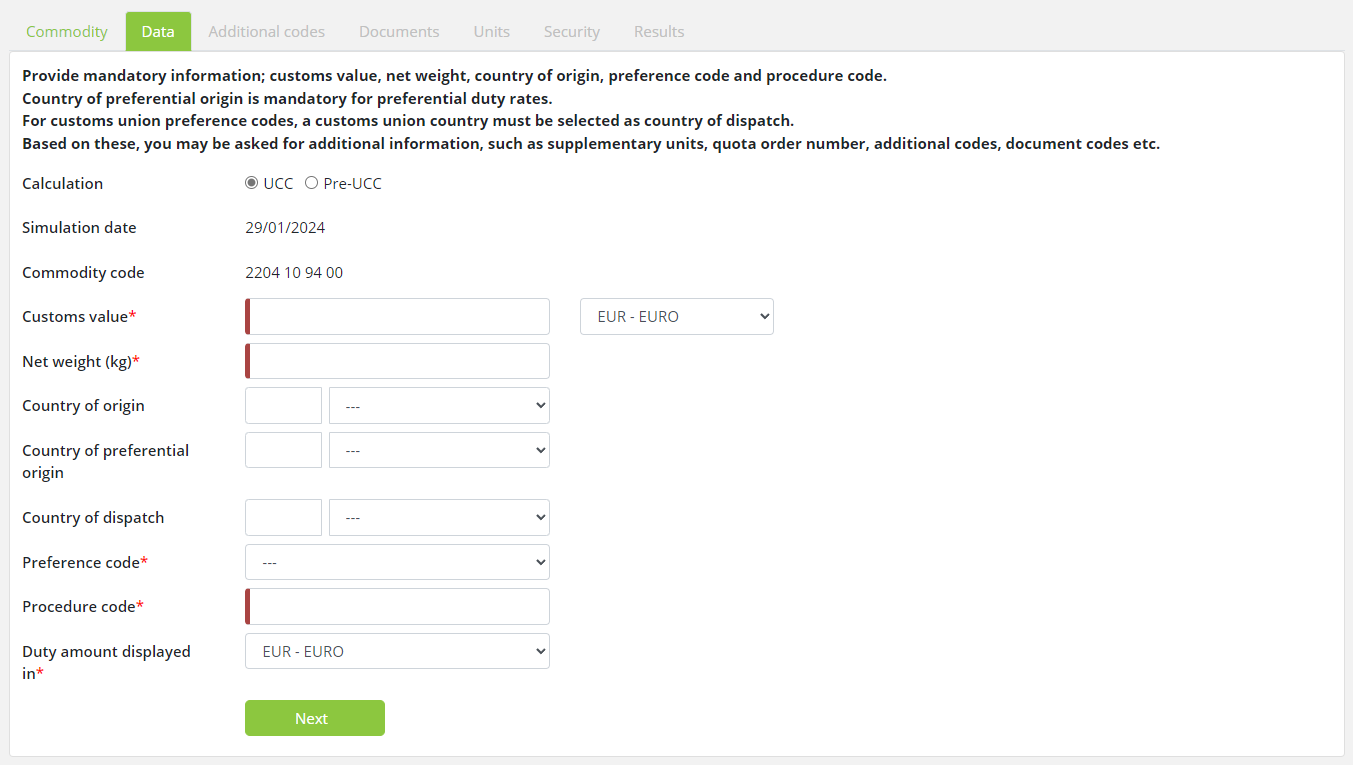
Enter the following information:
|
Field |
Description |
|
UCC / PRE-UCC |
Selecting Pre-UCC or UCC will determine which regulations the calculation will be based on. Specifically, it will select whether to use UCC or Pre-UCC preference code mappings (box 36 / data element 14.7 correlation tables).
|
|
Customs value
|
Enter the customs value of the goods. This is mandatory for imports.
Choose the currency of the customs value from the drop-down list (only displayed if more than one currency is available).
|
|
Net weight |
Enter the net weight of the goods, in kilograms.
|
|
Country of origin/destination |
Select the country of origin, for import, or country of destination, for export.
|
|
Country of preferential origin |
This must be provided for preferential preference codes (2xx, 3xx), if the country of preferential origin is different from the country of origin.
|
|
Country of dispatch |
Select the country of dispatch. The country of dispatch will be San Marino, Turkey or Andorra.
If a Customs Union preference code is selected (4xx), a country of dispatch and a country of origin must be provided (they may be the same country, but not always).
|
|
Procedure code |
Enter the procedure code value.
|
|
Duty amount displayed in |
Choose the currency you wish to see calculation results in from the drop-down list (only displayed if more than one currency is available).
|
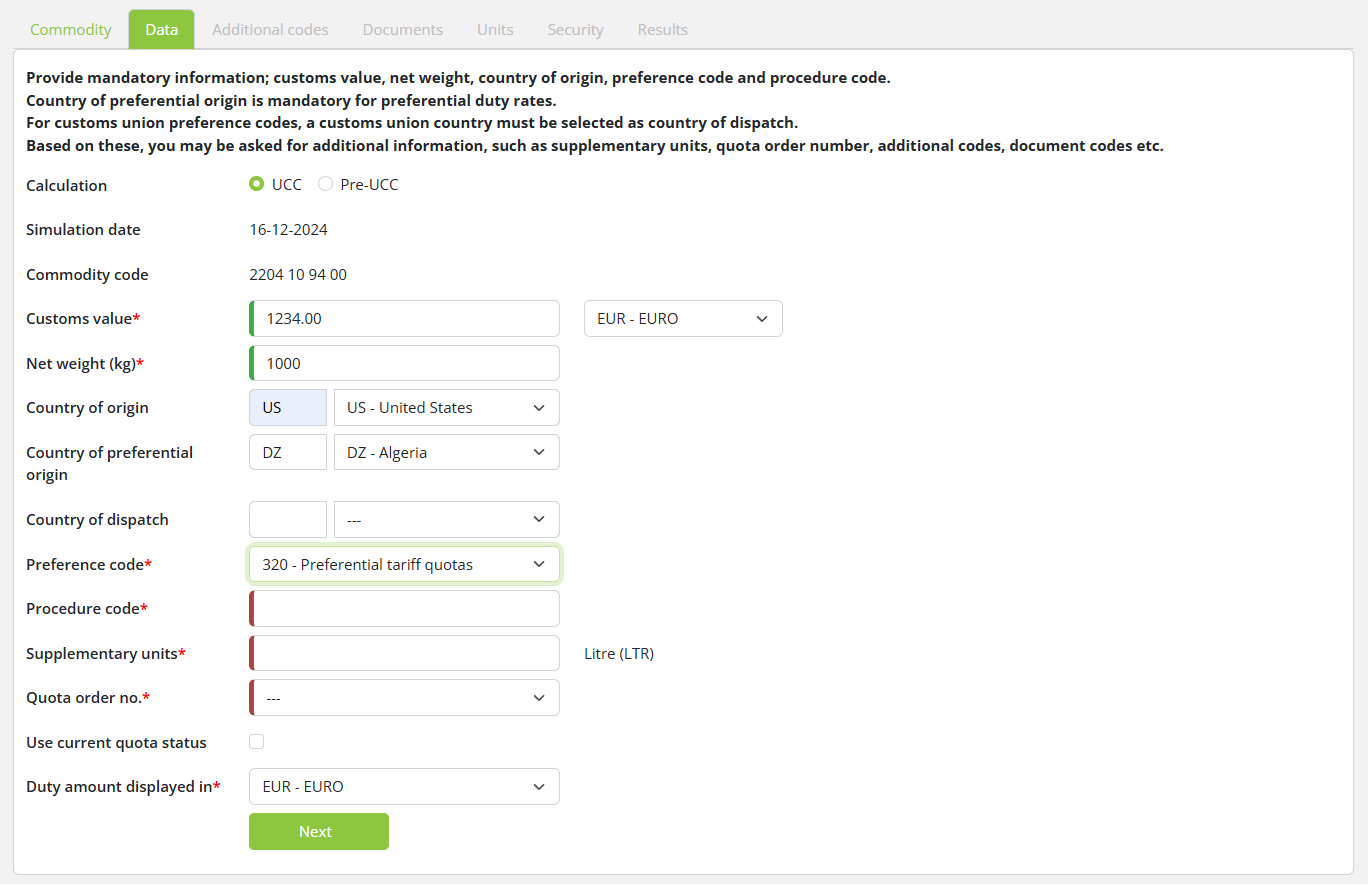
Additional fields, such as supplementary units and quota order number will appear after you select a country, if they are required:
|
Field |
Description |
|
Preference code |
For import, after selecting the country, a list of available preference codes is displayed. Select a preference code from the list.
Preference code is not required for exports.
|
|
Supplementary units |
After selecting the country, a Supplementary units box will be displayed, if there are mandatory supplementary units required. If so, enter the value of supplementary units (from SAD box 41), in the units displayed (e.g. Litres).
|
|
Quota order number |
After selecting the preference code, if a mandatory quota order number is required, a list of the applicable quota order numbers will be displayed. Select a quota order number from the list.
|
|
Use current quota status |
If a quota order number is required, this box is displayed. When checked, the quota status at the current date is used in the calculation. When unchecked, the quota status at the calculation simulation date is used.
|
After entering this information, click Next to move to the next step
Step 3: Additional codes
This step will be displayed if mandatory additional codes are required. If no additional codes are required, this step will be skipped.
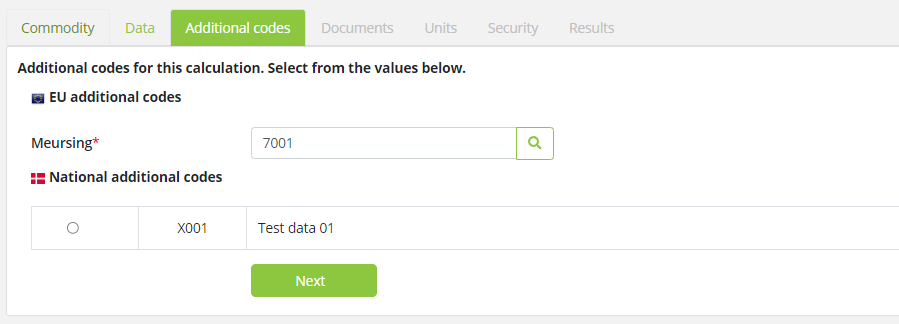
A list of applicable additional codes is displayed in one or more groups. One additional code must be selected from each group.
If a Meursing additional code is required, a Meursing box is displayed. Enter a Meursing code in the box or click  to find a Meursing code.
After selecting the additional codes, click Next to move to the next step.
Step 4: Documents
This step will be displayed if any measures in the calculation require documents to be presented. If no documents are required, this step will be skipped.
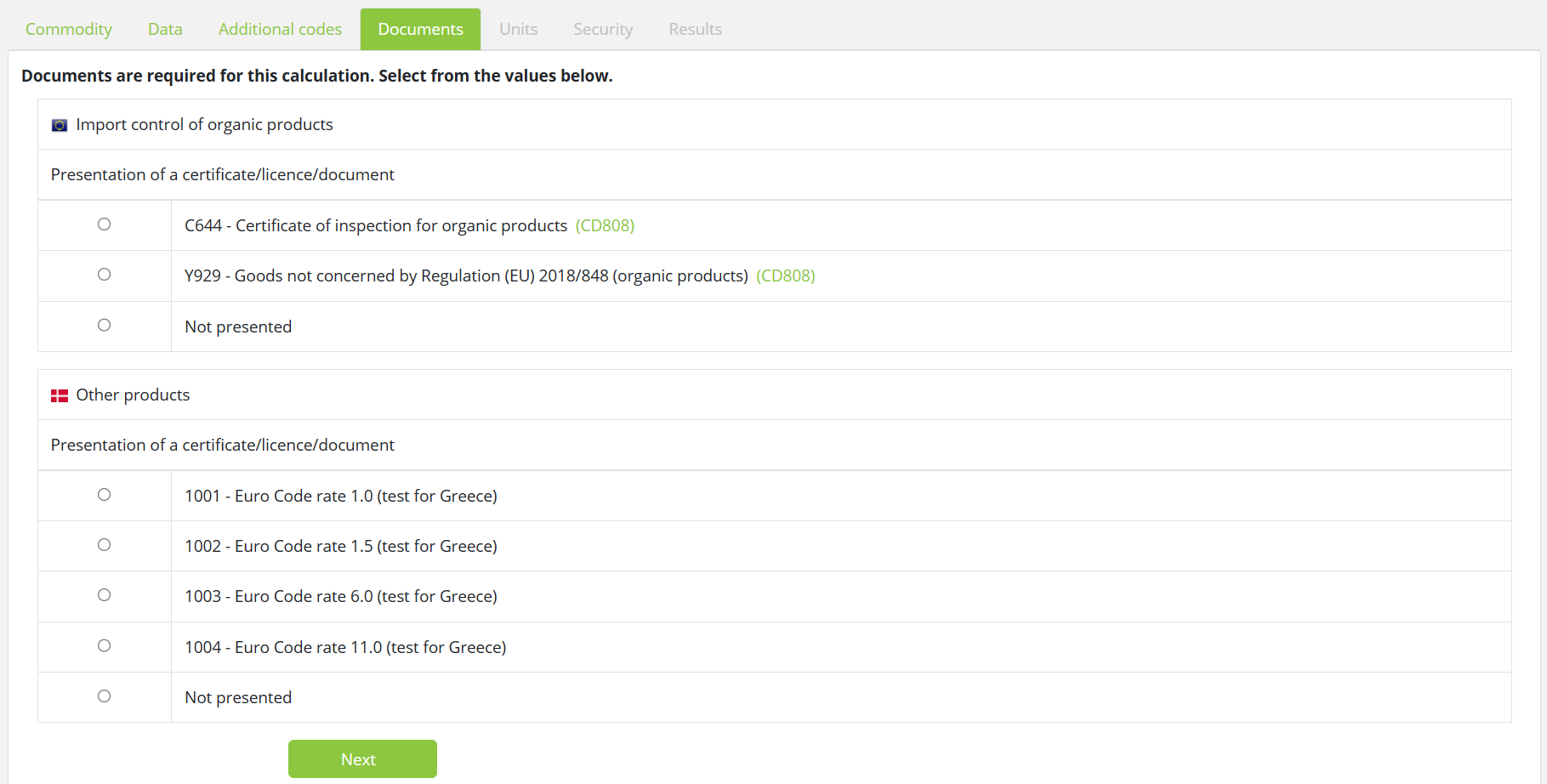
Document codes and descriptions are displayed, along with footnotes from the associated measures. Click a footnote code to display footnote text in a popup window.
Make a selection from each group of documents, then click Next to move to the next step.
Step 5: Units
This step will be displayed if the calculation requires additional values to be supplied. If the calculation can be done without additional values, this step will be skipped.

A list of required additional measurement units is listed. You must enter a value for each unit.
Click Next to move to the next step.
Step 6: Securities:
If a quota is critical, a security is calculated - the difference between the quota duty and the duty the trader would pay if the quota request is not allocated. In some cases, there may be a choice of basing the security calculation third country duty or on preferential duty; in such cases, the security tab is displayed so that the user can select which of these to base the security calculation on. If only one option is available for the security calculation, this step is skipped.
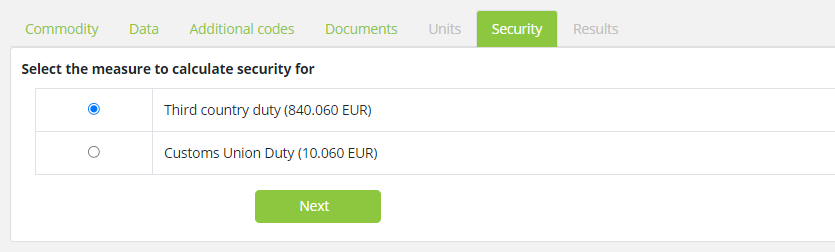
Select the relevant option for the security calculation and click Next to view the calculation results.
Step 7: Calculation Results
This screen displays the results of your calculation.
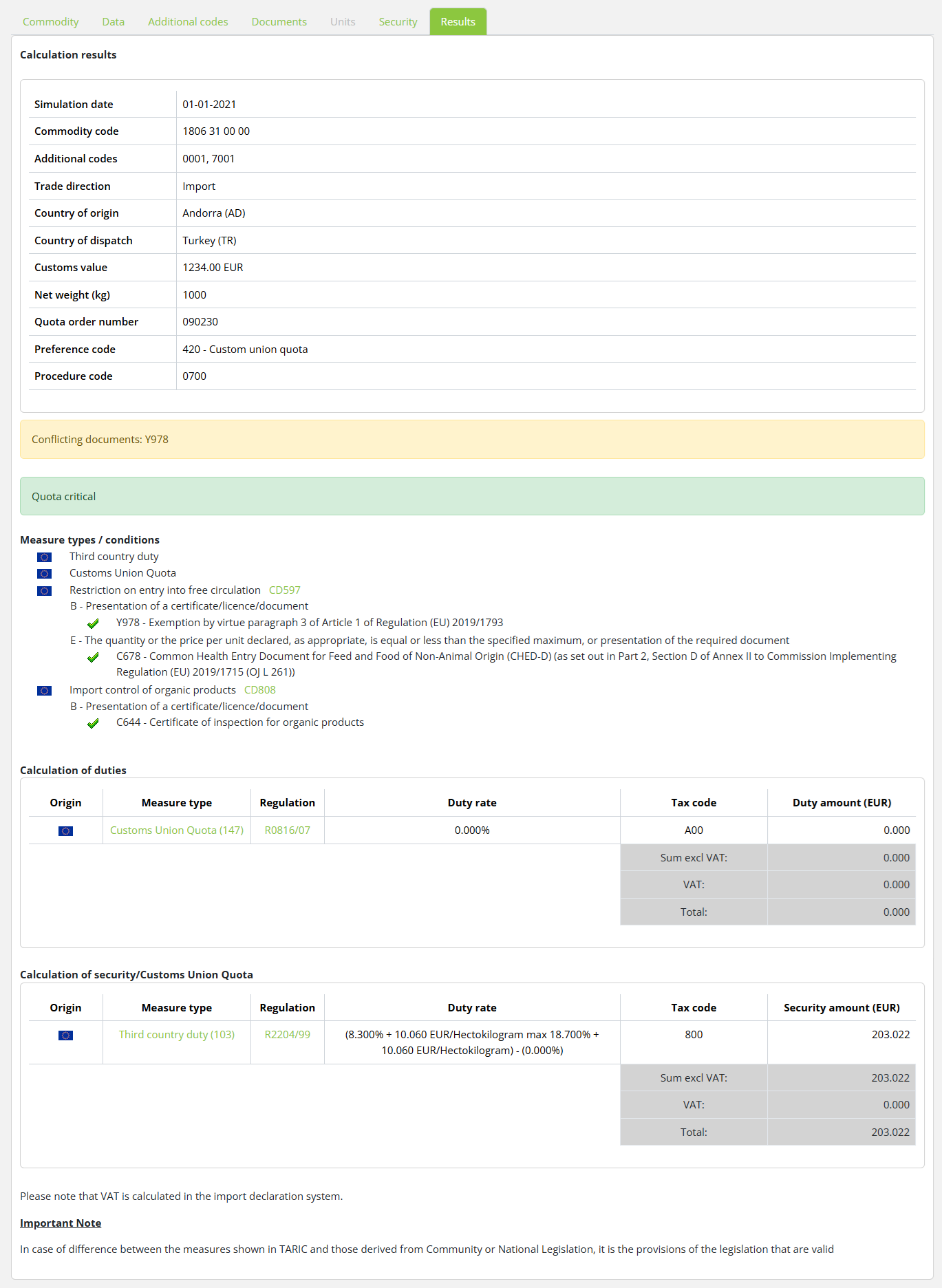
At the top of the page, the values you entered into the calculation are displayed.
Below these, any calculation warnings are displayed; for example, unfulfilled conditions due to missing documents or failed credibility checks.
Below this, a list of measures that were included in the calculation is displayed. Where a measure has a condition (e.g. it requires that a document is provided), details of whether the condition was fulfilled or not are displayed.
 means a condition was fulfilled.
_files/image054.png) means a condition was not fulfilled.
means a condition was not fulfilled.
In the lower part of the screen, the payable duties are displayed.
A calculation result can include one or more tariff measures and each measure is displayed in a separate line. The following information about each measure is displayed:
|
Field |
Description |
|
Origin |
Shows whether the measure is a national or a TARIC measure in the form of a corresponding flag.
|
|
Measure type |
Description of the measure type associated with the duty.
|
|
Regulation |
Shows the role and ID of the regulation associated with the measure.
To view the text of the regulation, click on the regulation ID. A separate window will be displayed with the legal act.
|
|
Duty rate |
The duty expression used to calculate the duty.
|
|
Tax code |
The tax code associated with the duty.
|
|
Duty amount |
The amount of duty payable for the measure. Where a measure’s duty expression has more than one component, the total calculated for each component is shown separately. For example, if the duty rate is 5.0% + 10.0 EUR/HLT, a value for 5.0% and a separate value for 10.0 EUR/HLT are shown, each with its own tax code.
|
|
Total excluding VAT |
The total of the duties, excluding VAT.
|
|
Total VAT amount |
The total amount of VAT payable. This will usually be the VAT payable on the Customs Value, plus the VAT payable for each tariff measure.
|
|
Total including VAT |
The total of the duties, including VAT.
|
Standard import value (SIV) or Unit value (UV) calculations
If the calculation result contains Standard import value (SIV) or Unit value (UV) calculations, it will be displayed in tabs:
· The "Normal" tab, displays the calculation results based on normal values (e.g. third country duty or preference duty)
· The "Unit Value" tab displays calculation results based on UV
· The "Standard Import Value" tab displays calculation results based on SIV

